Teamwork Match Types
There are three types of Teamwork Matches at an event:
- Practice Teamwork Matches: Practice matches are optional scheduled matches that are added at the Event Partner’s discretion. They do not count towards a Team’s ranking. If time permits, adding one round of Practice matches help teams and volunteers learn the flow of the event before the Qualification matches begin.
- Qualification Teamwork Matches: Qualification matches are required and count towards a Team’s ranking. See the Qualifying Criteria or ask your RSM for the required minimum number of Qualification Matches.
- Elimination Matches: Elimination matches are generated after the Alliance Selection process is completed. The number of Elimination matches is determined by the event capacity and the competition rules.
Running Teamwork Matches
Teamwork Matches can be run in the Competition Portal in these menus that can be found in the Dashboard or left-hand menu:
- Qualification Matches (Practice and Qualification Matches) & Elimination Matches
- Main Audience Display control screen
Who Should Control the Teamwork Matches?
There are a few options on who will control how matches are controlled. Multiple devices can have the control screen open at the same time, but it’s recommended that only one person is designated to control matches to avoid confusion.
Recommended Options:
Option 1: The Announcer can have the Main Audience Display control screen open on a tablet so they can view the match information, change the display settings, and start matches. Scorekeeper Referees will use tablets to score the matches.
Option 2: A designated Scorekeeper Referee or the Head Referee can use the Qualification Matches and Elimination Match menus on a tablet to score and control the match. The Main Audience Display will be set to the In Match display by default.
Option 3: The Technical Coordinator or other event staff member can be designated to operate the Main Audience Display control screen and control matches from a centralized device at the head table near the Teamwork Fields. Scorekeeper Referees will use tablets to score the matches.
The Event Partner, Head Referee, Announcer, Scorekeeper Referees and Technology Coordinator should discuss what option will work best for their event.
Running and Scoring Matches in the Qualification Matches Screen
The Qualification Matches screen includes a list of all of the Practice matches (optional) and Qualification Matches. The following sequence is followed to run a Teamwork match:
- Select the next match to be played from the list.
- This will open up the individual match control screen that has four sections:
- Select Current Match: This is the match that is currently queued.
- Event Match Info: Displays the match number and field name.
- Timer Controls: Interface to control starting and ending of matches.
-
Scoring: Interface to score the current match.
- Before starting a match, verify the correct match is displayed in the Select Current Match field.
- If it is incorrect, select Queue Match AFTER the previous match has ended.
- WARNING: Queuing other matches during a match that is currently being run will stop the current match.
- If the matches are run in order, the correct match should automatically be populated. Manually queuing a match will typically only be needed for the first matches of the day or if the matches are run out of order (replay).
- If it is incorrect, select Queue Match AFTER the previous match has ended.
- When the Head Referee and/or Announcer signals that it is time to start a match, select Start in the Timer Controls. This will start the 5-second countdown and an audio signal will sound when the countdown ends and the match officially begins.
- During the match, Scorekeeper Referees can score the match in the Scoring section.
-
In rare cases, the Head Referee may decide to restart the match due to a technical difficulty. Select End Early and reset the match timer.
- After the match has ended, the Timer Control section will show Complete.
- The Scorekeeper Referee(s) should complete the Scoring section, review the scores with the Teams, and then select Save Scores. Verify that the scoring status changes from Unofficial to Official with a green check-mark.
- WARNING: Selecting Save Scores during the current match will end the match early. Scores must only be saved after the match has been completed.
- Scores saved for a previous match will not affect the current match timer. For example, a score can be saved for Q1 while Q2 is being run and the Q2 match will not be affected.
-
Return to the Qualification Matches screen to select the next match. Repeat the previous steps for all Teamwork matches.
-
In the list of matches, the previously completed matches will have a green checkmark under Scores Finalized and the Match Completed status will change from “No” to “Yes”.
- If Qualification matches are completed and Alliance selection is finished, then select Elimination Matches to run those matches.
Running Matches in the Main Audience Display Control Screen
The Main Audience Display control screen has similar fields as the Qualification Matches screen, except it does not have the Scoring interface. At some events, the Announcer will have the Main Audience Display Control screen on a tablet to run the matches and control the display type. In that case, the Scorekeeper Referees will only need to score and save the matches in the Qualification and Elimination Match menus. See the Setting Up & Controlling the Main Audience Display article for more information on how to run matches using the Main Audience Display control screen.
Editing a Teamwork Match Score
If the Head Referee authorizes a change to a previously saved Teamwork match score, then the following steps can be taken to update the score:
- Go to the appropriate match menu: Qualification Matches or Elimination Matches.
- Select the match to be edited.
- At the bottom of the Scoring section, there are four options:
- Unfinalize and Update: Changes the scoring status from Official to Unofficial.
- Clear Scores: This will reset all scoring items to zero.
- Revert: This will revert to the last saved scores.
- View Score History: This will provide a list of saved scores entries (date/time & User) that can restore the scoring values.
- In the Scoring section, select Unfinalize and Update. This will change the Scoring status from Official to Unofficial, but the score values will remain intact.
- Adjust the scoring values by manually adjusting the scores, clearing the scores or reverting the scores to a previous state.
- After verifying the updated scores, select Save Scores.
Changing the Teamwork Match Field
In rare situations, a Teamwork match may need to be played on a different field than what is designated by the Competition Portal match schedule.
- Select the edit icon in the Event Match Info menu to expand this menu.
- Select the desired Field (only applicable to events with more than one Teamwork field).
- If the Field Timers are not displaying the correct information, select the Queue Match button to refresh the match information on the displays.
Elimination Matches
Elimination Match Rounds
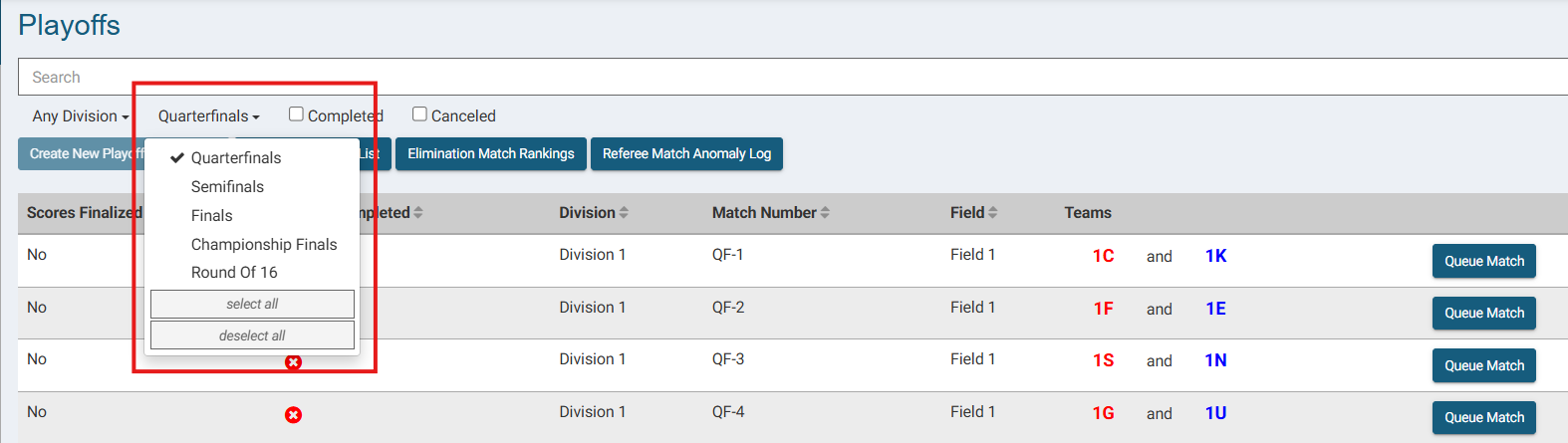
Elimination matches are only created once the Alliance Selection process has been completed. The number of Elimination matches are determined by the competition program type and rules, and the Competition Portal will automatically generate the correct number of matches based on the event’s program type. Elimination matches are typically played in these types of rounds listed from lowest to highest rounds:
- Round of 16 (R16): Only for 2v2 competition programs, and does not apply for 2v0 competitions.
- Quarterfinal matches (QF)
- Semifinal matches (SF)
- Finals (F)
The lower round matches will be generated first, and once that round is completed, the next round will be generated automatically. Once the next round is started, scores from a previous round cannot be changed unless the scores in the current round are changed to an unsaved “Unofficial” state. This is because changing scores in lower rounds would affect which Alliances would advance to the next round and the order in which they compete.
The default view will be the current round of Elimination matches, but other rounds can be viewed by using the dropdown menu:
Running Elimination Matches
Elimination matches are run starting from the match at the top of the list. After an Elimination match has been completed, that match will be hidden from the Elimination match list. To access the completed Elimination match, select the Completed checkbox.
Example:
QF1 has been completed and no longer appears on the default Elimination match list.
Selecting the Completed box will show the completed Elimination Match.
Elimination Match Ties
If there are ties in the Elimination matches, the Competition Portal will handle those according to the rules in the Competition Manual. This may include creating extra tiebreaker matches and/or using a Match Stop Time. It is recommended that the Head Referee review the section in the Competition Manual regarding ties in Elimination Matches to ensure they are run properly.
For ADC competitions:
If there is a tie for the highest score in the Finals match round, select Create New Playoff Final Match to create a new round of Finals matches.
Teamwork Match Reports
Practice & Qualification Match Reports
There are five reports available related to Practice and Qualification matches that can be found in the Signs/Reports/Certificates section in the Dashboard or directly in the Qualification match menu.
Qualification & Practice Match Lists
These reports provide a downloadable PDF document with the match information for the specific match type. These are commonly provided to Teams and event volunteers after the match schedule has been finalized.
Qualification Match List Per Team
This report is a downloadable PDF document that organizes the match list by team. This can be a helpful report to provide to teams and Judges to help them identify matches for a specific team.
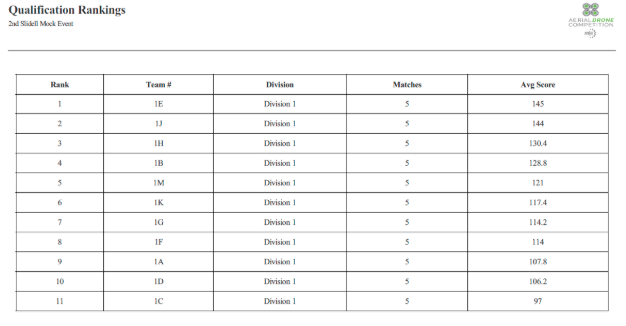
Qualification Rankings
This report is a downloadable PDF document that shows the Qualification ranking information for all of the teams in the event.
Referee Anomaly Log
This report is a downloadable PDF document that provides a template for the Head Referee to capture match notes throughout the event.
Elimination Match Reports
There are two additional reports available to download for Elimination matches.
Elimination Match List
This report provides a match list that includes the match information for the Elimination matches. This is a helpful report to provide to Queuing volunteers and other event staff that will be assisting teams competing in the Elimination matches
Elimination Match Rankings
This report provides the current ranking for the teams participating in the Elimination Matches.